Your insights are central to how we build Business Pilot. We are delighted to share a powerful new set of features and enhancements, all directly shaped by the feedback we receive from our valued customers.
These tools introduce new capabilities in lead management, data clarity, and payment processing. Explore the sections below to learn how these updates will streamline operations and boost your productivity immediately.
Use the navigation links to jump directly to the update you need, or scroll down to explore the full list.
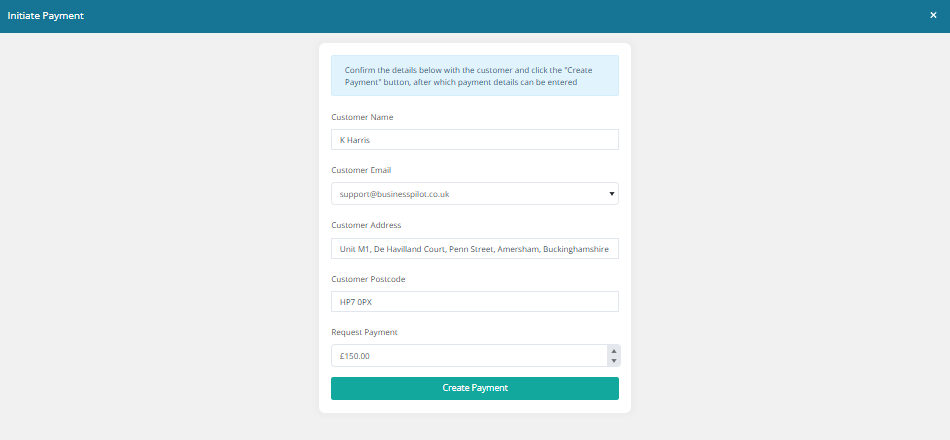
You can now turn your computer into a secure payment terminal with Blink – no extra hardware needed!
If a customer calls in or doesn’t have internet access, any user in your system can easily initiate the payment and securely take their payment details over the phone. It’s a fast, all-online solution that replaces the need for a physical card terminal and you also do not need to have raised an invoice or payment link in advance.
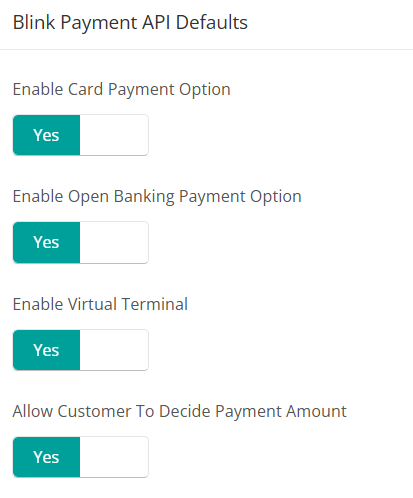
Enable virtual terminal setting:
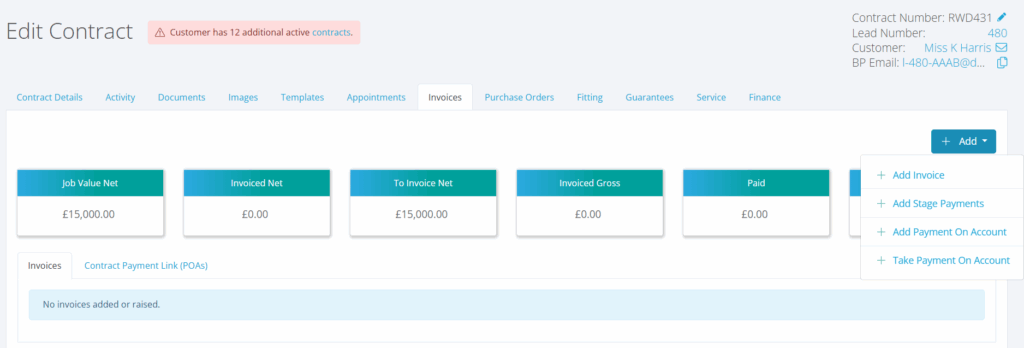
Option to ‘take payment on account’ via general invoice section:
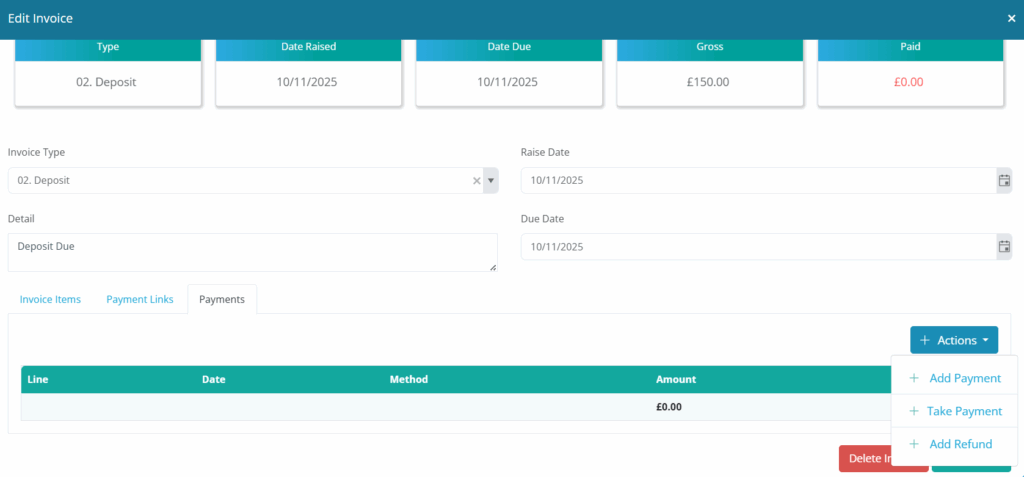
Option to ‘take payment’ within individual invoice:
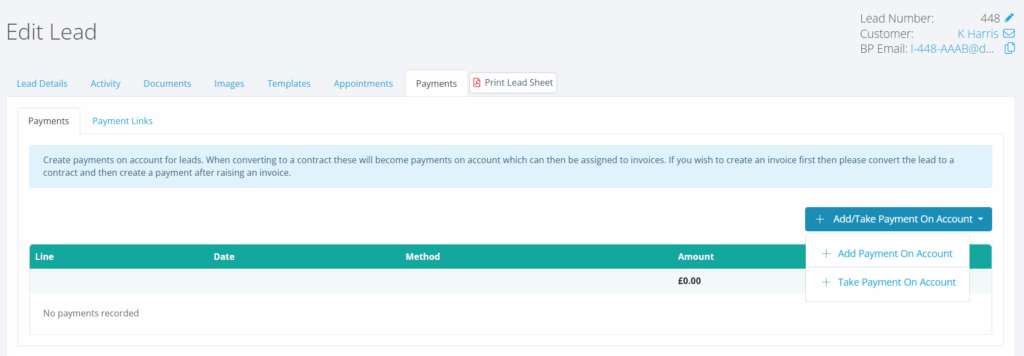
Option to ‘take payment on account’ via lead:
Terminal:
Add Notes Directly to Images
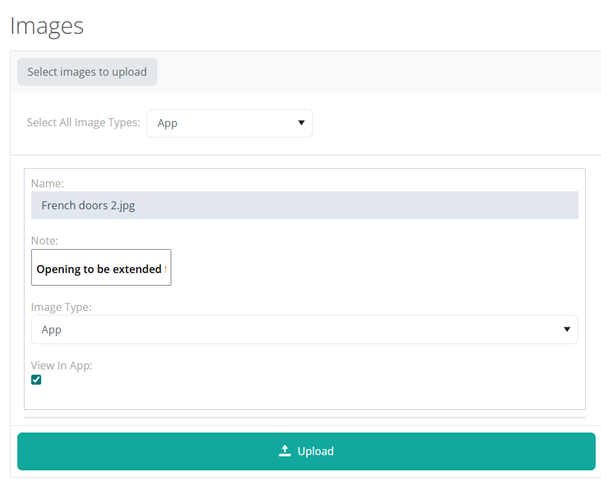
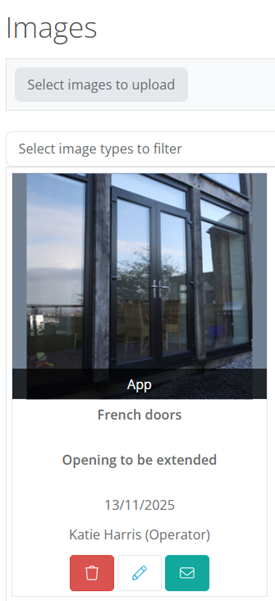
You can now add descriptive Notes & labels directly to your images via both the Site App and the Portal.
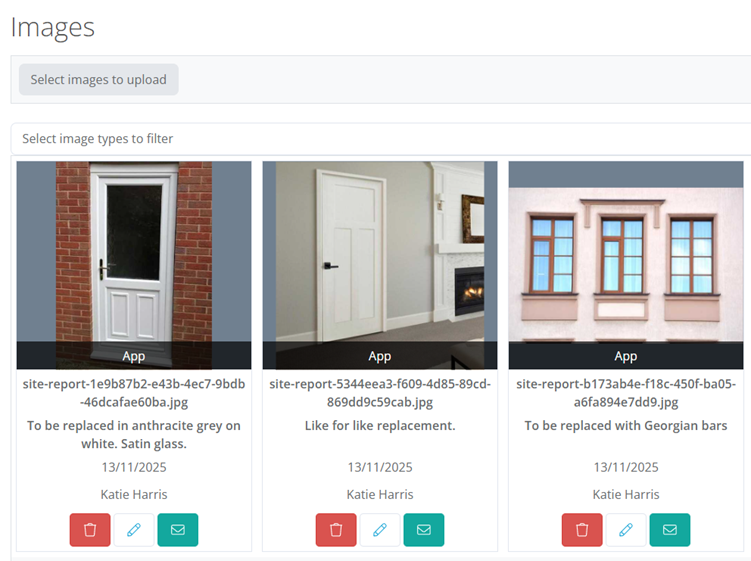
Whether you’re on site in the office, you can type a note next to an uploaded image, and the extra detail is instantly available to anyone viewing the image. Crucially, the note is automatically included with the image when generating your PDF Site Report, ensuring your final project documentation is complete and unambiguous every time.
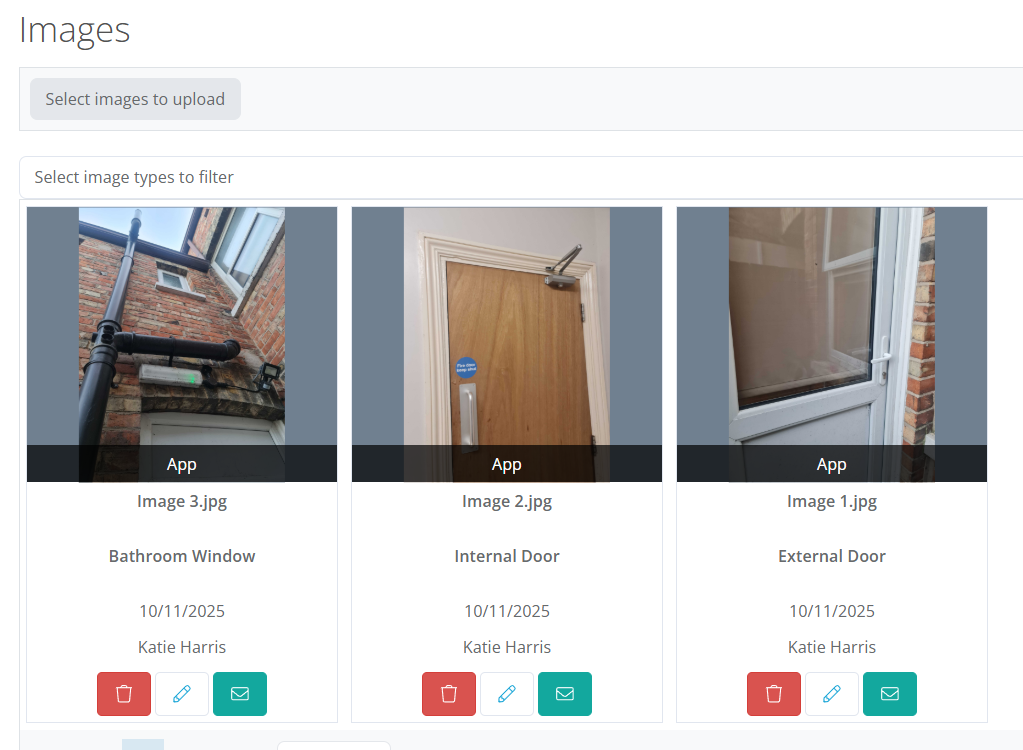
Adding notes on images directly in the system:
Notes on Images returned via a site report:
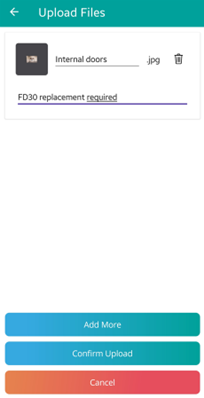
Note on adding image within app:
Note within app:
Image Carousel: Seamless Desktop Browsing
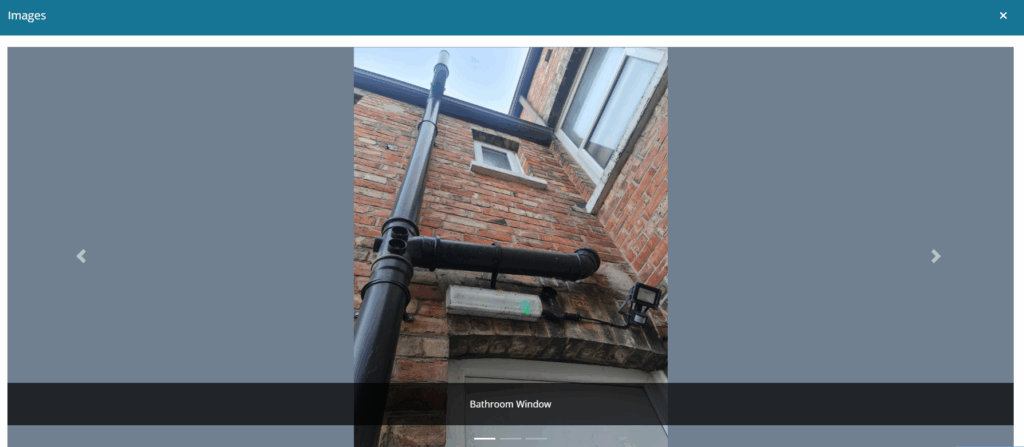
We’ve brought the convenience of the mobile app’s image browsing to the desktop. Instead of having to open and close the dialog for every photo, you can now scroll left and right through all images for a lead or job within a single, continuous carousel view. Browse photo surveys and job progress faster than ever before.
Simply select the first image with to view and you can scroll from there.
Image section:
Carousel:
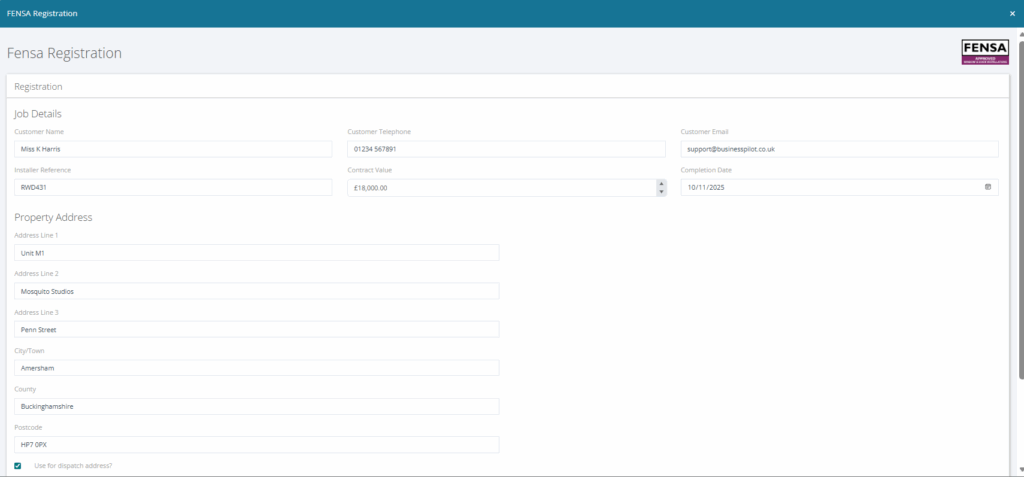
FENSA Registration: Faster, Cleaner Data Entry
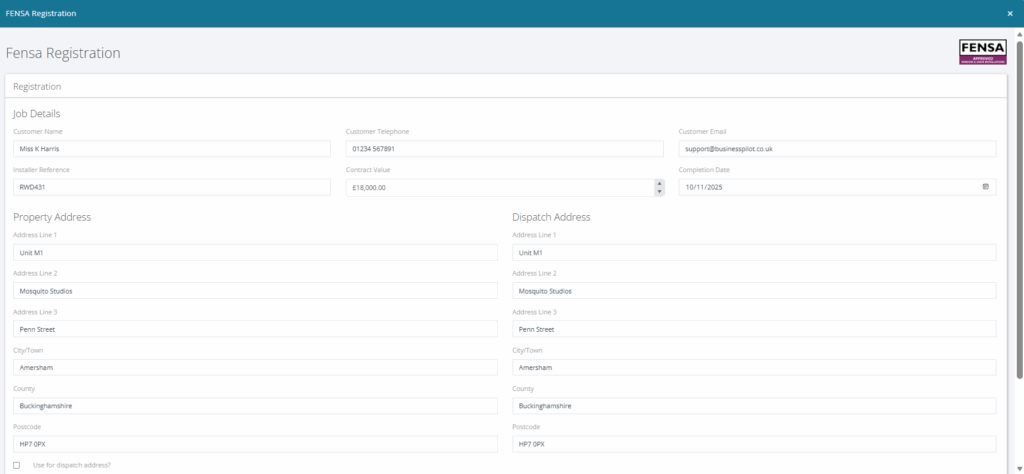
We’ve streamlined FENSA registration to save you time. Now, if the Dispatch Address is the same as the Property Address, simply tick the ‘Use Same Address’ box. The system will instantly populate the details and hide the manual dispatch fields from view. This simple UI change ensures two things: Time saved on data entry, and guaranteed clarity that the certificate is being sent to the property address
Before selecting ‘use for dispatch address’ bottom left:
After:
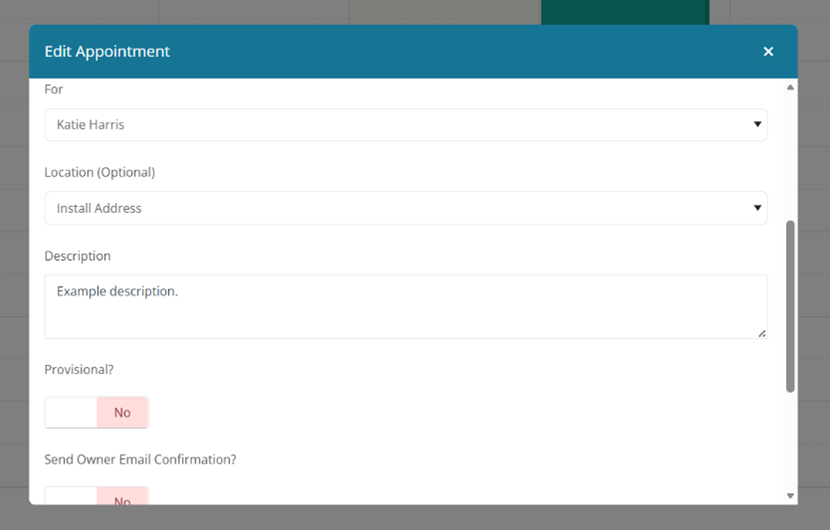
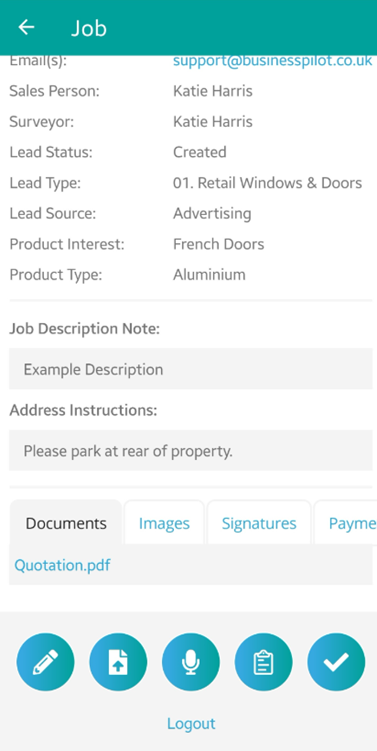
Unified 'Job Description Note' for All Appointments
To simplify information flow, we’ve extended the ‘Job Description Note’ field from the diary on to BPsite app for all appointment types. It will now display the Appointment Description you set in the Portal for:
Sales Appointments
Survey Appointments
Service Appointments
This change ensures that any specific notes or instructions added during booking are consistently visible to your field team via the app, regardless of the job type.
Adding job description within appointment in system:
Job description within app:
Survey Appointments: See All Images, Instantly
Your surveyors can now view both Lead and Contract images within a Survey Appointment on the mobile app.
Previously, the app only showed images attached directly to the Lead. Now, if the Lead has progressed to a Contract, the appointment screen automatically pulls in all related images from both the Lead record and the Contract record.
This means your team has instant, complete visual context. From initial site photos to any preceding contract documents, without ever having to leave the appointment screen. Maximized efficiency on site.