This release introduces the Phases framework, designed to help users manage multi-site, multi-product, or large-scale commercial contracts within a single customer record.
Previously, managing a large project under one contract could obscure details, while creating separate files for every individual phase increased admin and split the pipeline reporting. The Phases feature addresses this by maintaining a single master lead or contract while segmenting the operational and financial delivery. Let’s have a look at how it works.
Expanding the Operational Power of Phases
As this feature is not necessarily required for standard retail installations it is optional and must be activated via your system settings before the tracking fields will appear on your records.
Enable Phase Infrastructure:
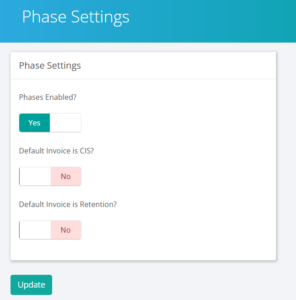
Navigate to the main administrative settings panel. Locate the Phase section and toggle the option to Enable Phases.
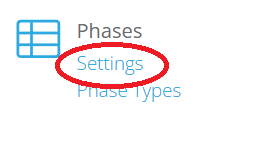
You can find these settings by heading to Admin > Phases > Settings
Establish Custom Classifications:
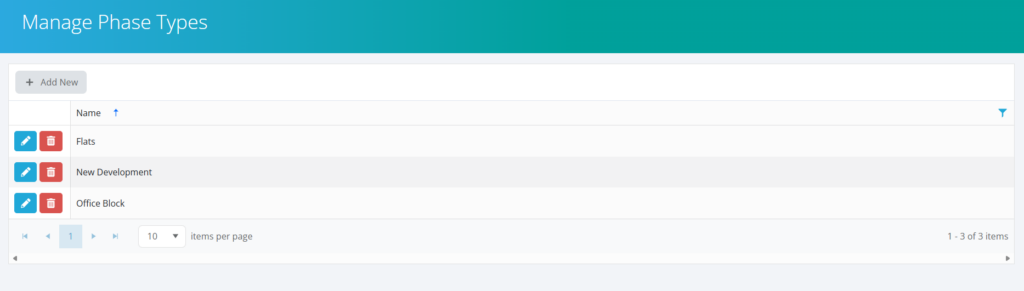
Create custom classification types to match your operational needs, such as Flats, New Build Developments, Office Block, or Multi Product Delivery.
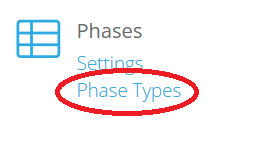
You can find these settings by heading to Admin > Phases > Phase Types
Add Phases to a Record:
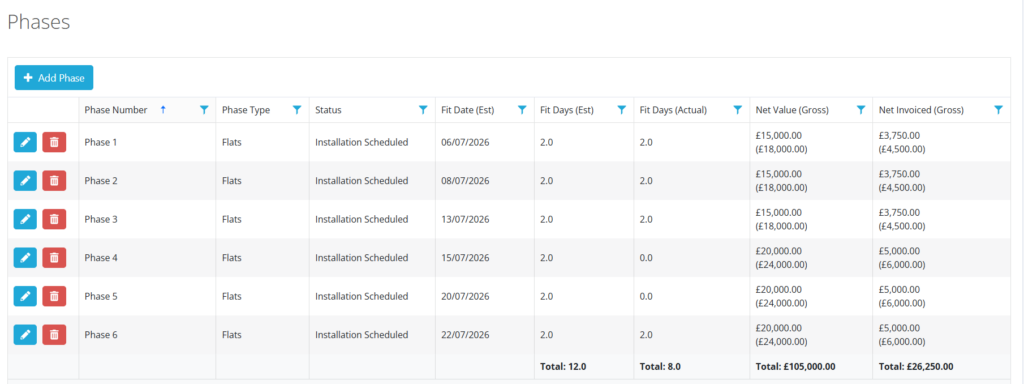
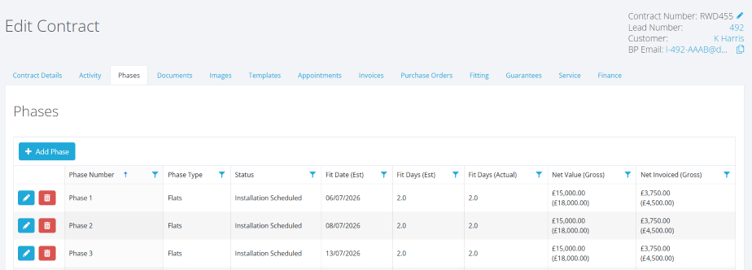
To keep initial data entry fast, phase options remain hidden on the primary Lead creation screen. Once a standard lead is saved, a new Phases tab will appear on the file. Under this tab, you can add as many individual elements as the project requires, such as Phase 1, Phase 2, or Plots 1 to 20. You can then add values to each of these which will carry through to the Contract set-up in the event of a successful outcome.
Manage Live Contract Workflows:
Once a lead transitions into a live Contract, the framework allows you to track and execute key operations independently by specific phase, plot, or block.
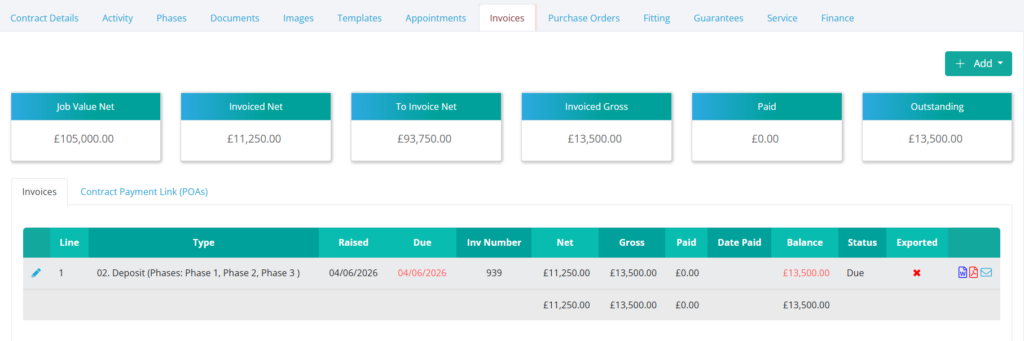
Each Phase can carry it’s own value, fitting days, invoices, balances, purchase orders, remedial calls and status progression. Equally all of this can be managed at the contract level as well, subject to the requirements of each project!
Let’s look at the main elements of the framework.
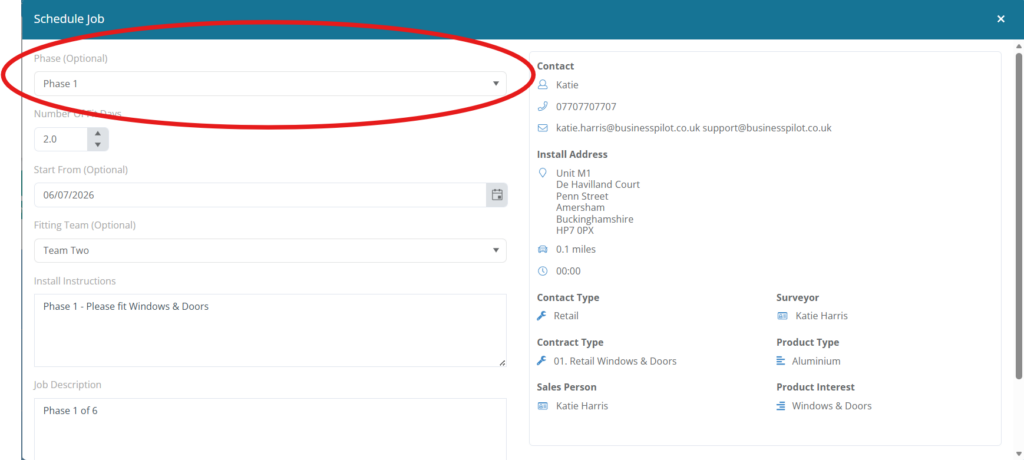
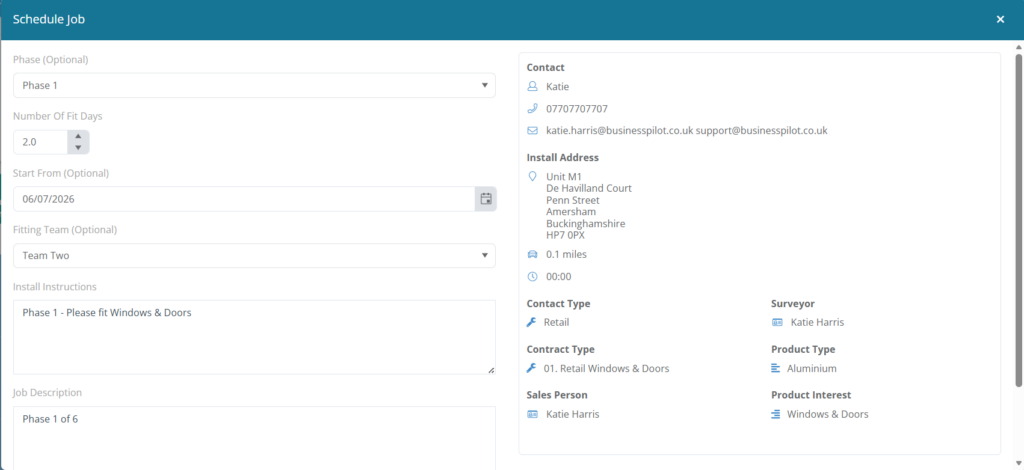
You can see when scheduling your job, where you can select the phase you are scheduling.
Status Progression:
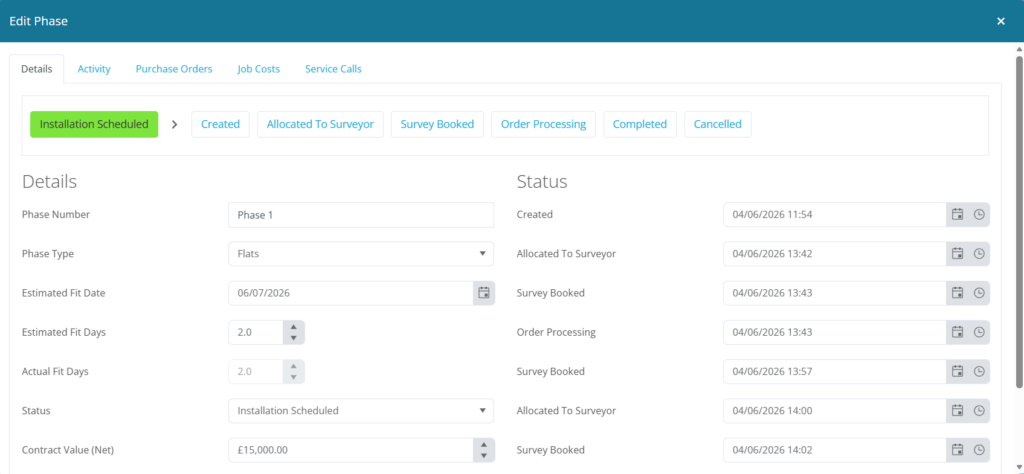
Advance individual plots through your pipeline independently. For example, Phase 1 can be moved to the installation stage while Phase 2 remains in survey. Here is how that screen look and how you can edit one of the phases within a contract, which also shows the additional tabs & pipeline.
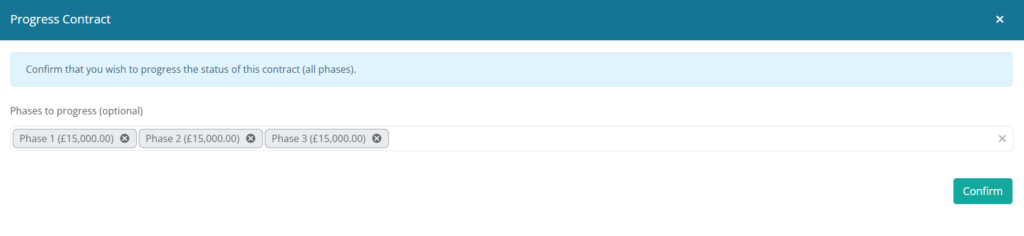
On your main pipeline, you can also select to progress a single phase, multiple phases, or all phases.
Phase Specific Invoicing:
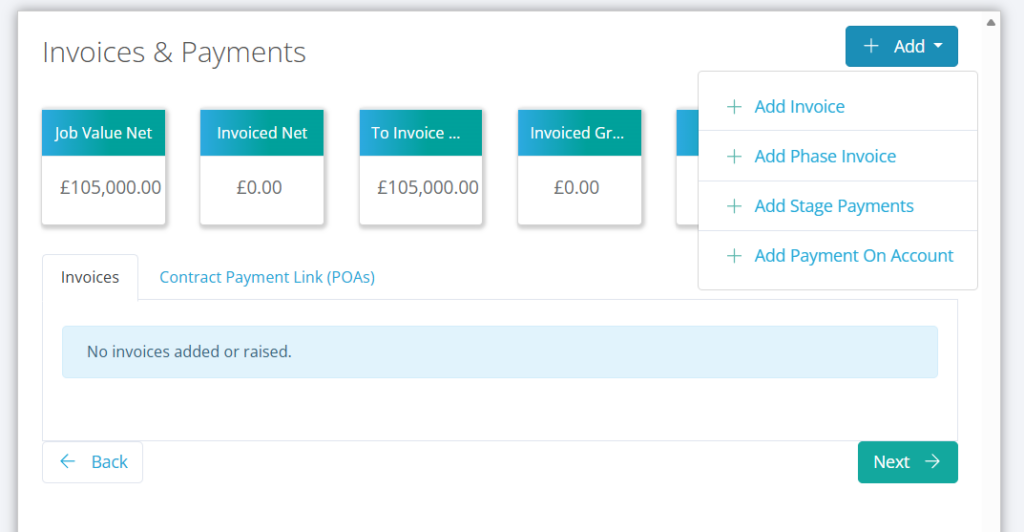
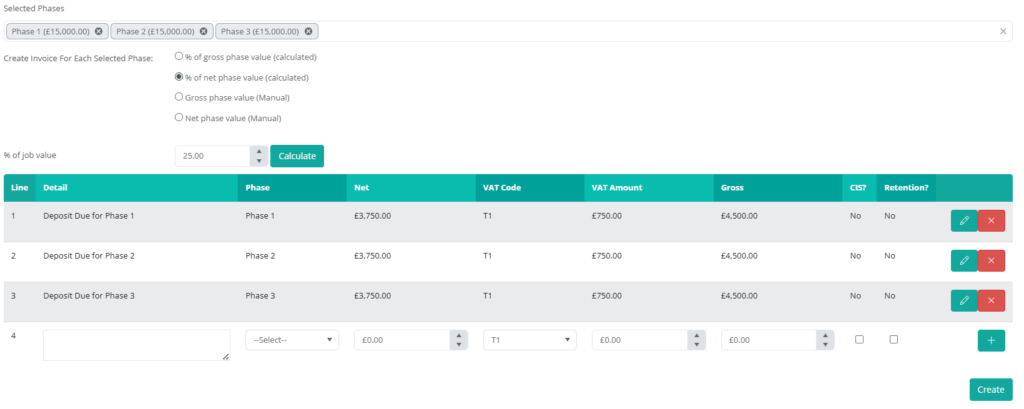
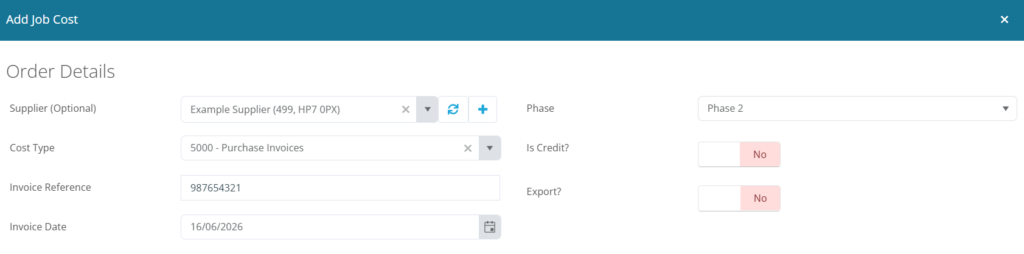
Raise financial applications and invoices tied directly to the completion of specific phases, streamlining cash flow management for high value accounts.
Targeted Purchase Orders:
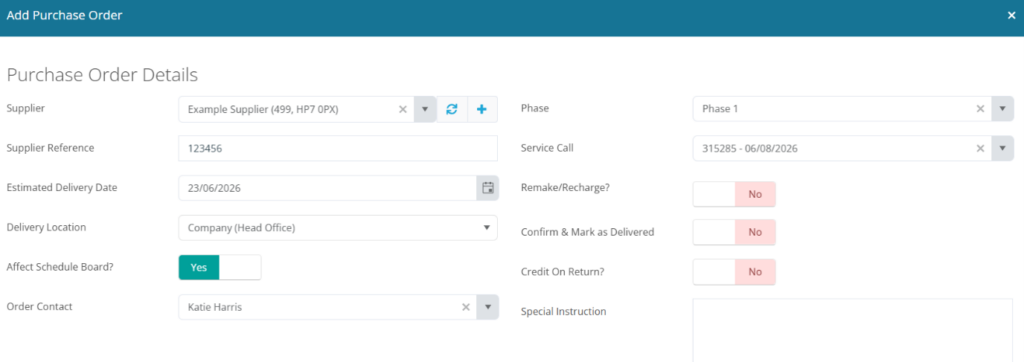
Issue purchase orders for materials or specialized sub-contractors linked directly to the relevant phase, keeping project costing precise.
Installation Scheduling:
Assign fitters and schedule installation dates on the central diary by individual phase or plot, preventing logistical bottlenecks on site.
Service Calls & Aftercare:
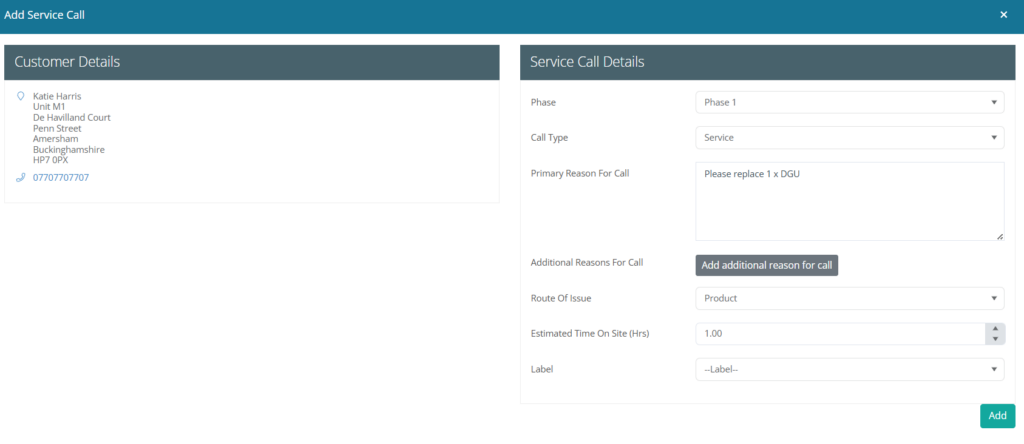
Log and manage service calls against the exact phase or plot where the issue occurred, maintaining a flawless historical record for long term maintenance contracts.
That wraps up our look at the new Phases feature. As we continue to develop and refine Business Pilot, we have several more exciting updates on the horizon designed to make managing your installation business even easier. Keep an eye on our updates page and your inbox for more announcements coming soon.