Our SMS feature allows you to send messages to customers. They can be personalised using our placeholders and you can pre-set SMS content templates for consistent customer communications. They can be set as an action in a status progression in your pipeline and they can be used to send diary appointment reminders to customers.
Follow this guide to get started with SMS in Business Pilot.
How to get started...
There is a small set-up process if you would like to start using our SMS feature. This is so that we can register a bespoke mobile number to your system that your SMS messages will come from.
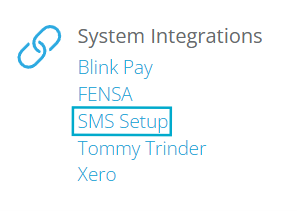
To get started, head to Admin > Integrations > SMS Set-up
You will see a ‘Connect’ section, where there are some T&Cs you will need to read and agree to in order to use the SMS service. Once that’s been done, you can hit Connect.
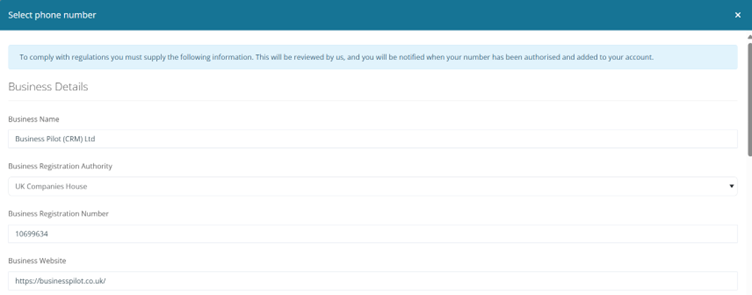
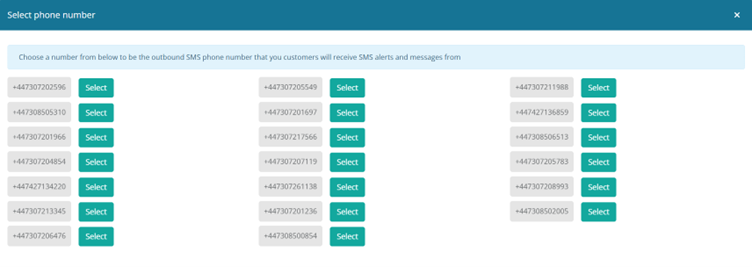
Then, you can select your phone number and complete the business information in order to register the number to your company for the SMS service.
Please note, that to keep costs at a minimum, and to ensure each company using Business Pilot has a unique number, you can only choose a standard mobile number (ie. +447896543210). No ‘short code’ numbers are available.
When this is complete, our team will be notified, and we can create your SMS bundle. Once your information has been authorised by our SMS partner, we will let you know, and you can get started. This should take no longer than 48 hours.
Choosing your SMS bundle
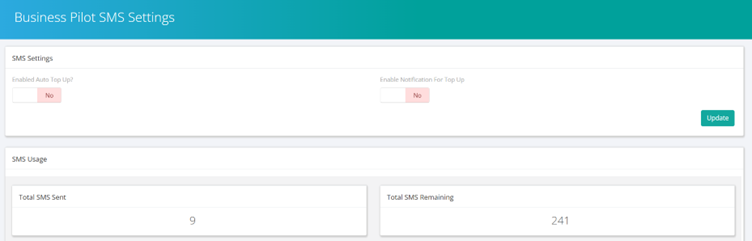
Once you’re live, you can choose your SMS bundle. This can be done via Admin > Integrations > SMS Settings.
In the SMS Settings area, you can ‘Enable Auto Top-ups’ for your SMS bundles, so you never run-out. You set the ‘remaining texts’ number when it will trigger the top-up and choose the top-up bundle.
Alternatively, you can ‘Enable an Email Notification for Top-up’ and then head back into the settings to manually top-up your bundle when required.
If your bundle has run out and you try to send an SMS, you will receive a warning.
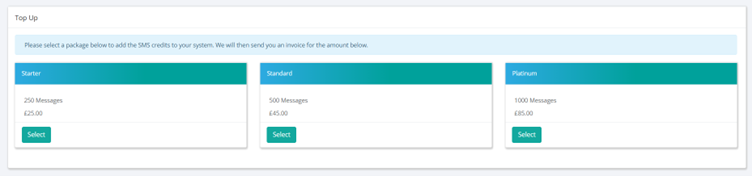
Our bundle packages are:
Starter – 250 messages – £30.00
Standard – 500 messages – £50.00
Platinum – 1000 messages – £80.00
Once you add a bundle to your account, we will send an invoice in the usual way for payment by GoCardless.
In this area, you can also see your SMS usage, including total sent, total remaining in your current bundle and a full log of sent messages.
How to set up your SMS templates
Our SMS feature works in a similar way to BPmail and Tasks in that you can set-up templates for your team to use.
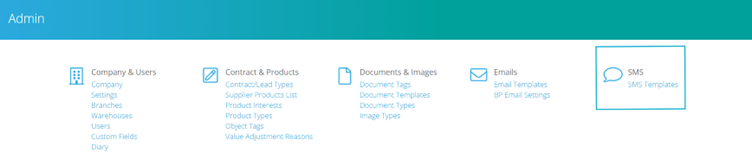
To set your templates, head to Admin > SMS Templates.
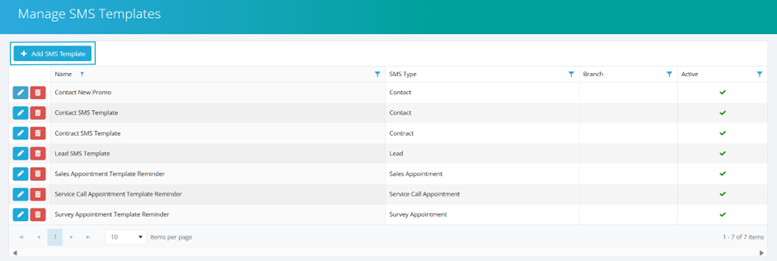
Click the ‘Add SMS Template’ button.
When the window opens, you’ll need to:
Choose your Template Type – just like in our BPmail templates, this will determine in which areas you will be able to use the template. The options are:
Enquiry
Contact
Lead
Contract
Purchase Order
Invoice
Sales Appointment
Survey Appointment
Service Call Appointment
Name your template – make it simple and clear – something like ‘Sales Appointment Reminder Template’
Add your SMS content – here you can insert placeholders to personalise your message with the customer or contract details
Click Add
The template will now show in your list of SMS templates.
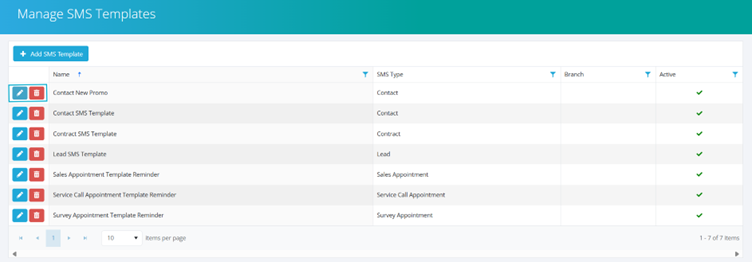
You can use the Pencil icon to make any edits, or the Bin icon to delete. You can also make a template inactive using the toggle in the Edit window, if you want to temporarily remove it as an option. Or, this feature could be used for seasonal SMS templates, that might feature your showroom opening hours over Easter or Christmas.
How do I send an SMS?
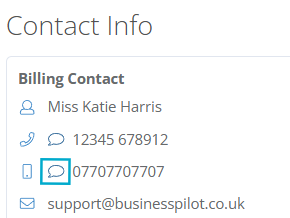
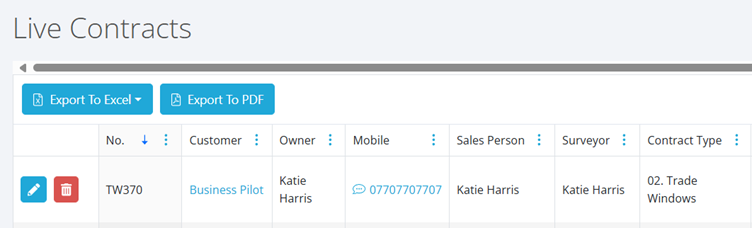
Wherever there is a telephone number in the system, you will see a speech bubble icon that you can click on to manually send an SMS. This features within the Contact, Enquiry, Lead and Contract areas as well as in the Grids.
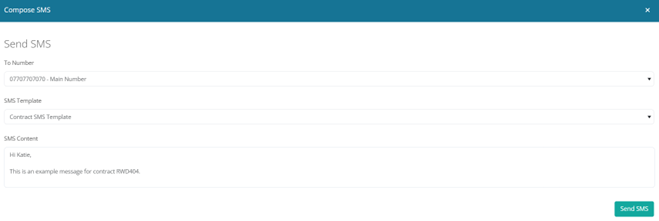
You then confirm the ‘To Number’, choose your template and edit your SMS content as required and click ‘Send SMS’.
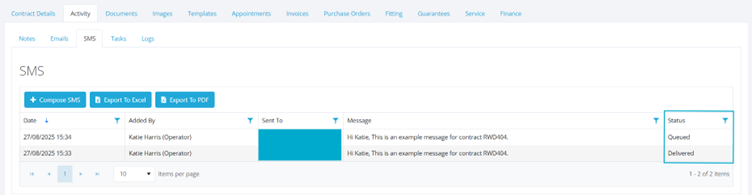
Every SMS sent will be recorded in the new SMS tab in the Activity tab. You can also compose new SMS messages from there and export your SMS activity as a PDF or Excel spreadsheet.
Please note that when SMS messages are initially sent, the Status will be shown as queued and then ‘Sent’. But sending will generally only take around 30 seconds.
How to set SMS Reminders for Diary Appointments
SMS Reminders are available on all diary appointment types.
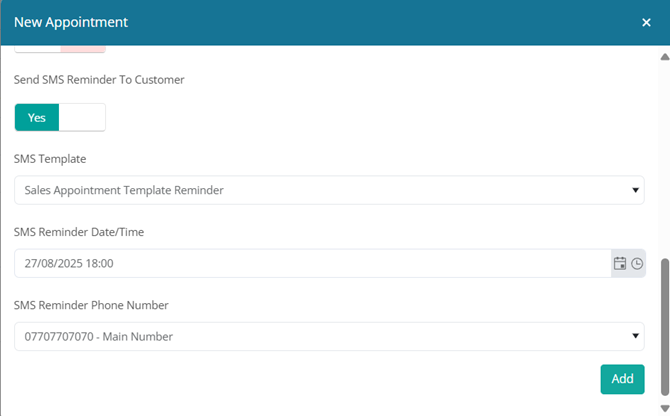
When you set a new appointment in the diary, you now have the option to send an SMS reminder to the customer.
When you book a new appointment, toggle the ‘Send SMS Reminder to Customer’ toggle to ‘Yes’.
Set your SMS Reminder Date and Time – this might be the day before or even the morning of the appointment, or you could use this as an appointment booking confirmation.
Choose the SMS Reminder Number and your SMS Template and then hit Add.
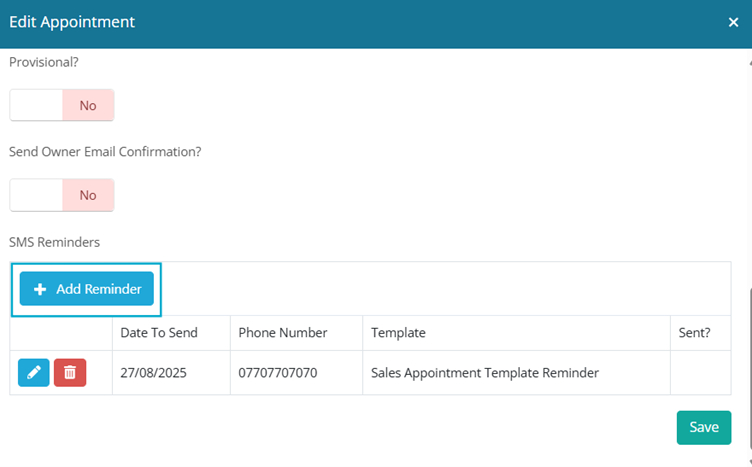
Once an appointment is booked, you can add multiple SMS Reminders if you wish. Just edit the appointment to see the SMS Reminder grid and add as many as you would like.
Please be aware that this integration works via an API which is refreshed every 30 minutes or so, so we do not advise adding SMS notifications to appointments at short notice. If you need to send one at short notice, please use the manual SMS sending option.
Using SMS Actions in Status Progressions
In the Status Progressions area, you can now set a ‘Send SMS’ action, like how you set a ‘Send Email’ action.
To add a ‘Send SMS’ Action to your pipeline, head to Admin > Status Progressions and either Lead Pipelines or Contract Pipelines.
Find your Pipeline and click ‘Edit’, then head down to Progressions.
Choose the Progression you would like to edit, and in the ‘Add Action’ area, you can now choose ‘Send SMS’ as an Action and select your chosen SMS Template.