
Our development team are hard at work developing some fantastic new features for the Business Pilot System that will be ready to launch ahead of our appearance at FIT Show 2025 in April.
In between this larger development work, they’re also working through the ideas board to bring you other updates to help save you time and run your installation businesses even more efficiently. Here’s what’s new this week…
Documents Area Added to Contacts
In Contacts, you’ll see that there is now a Documents tab.
This has been added so you can upload information that relates to a single contact but won’t necessarily be relevant to every Lead or Contract related to that Contact.
So, you could use it for storing information and documents related to a Supplier Contact, or a Trade Customer, for example. Or, to simply store enquiry information prior to that Contact becoming a valid ‘Lead’.
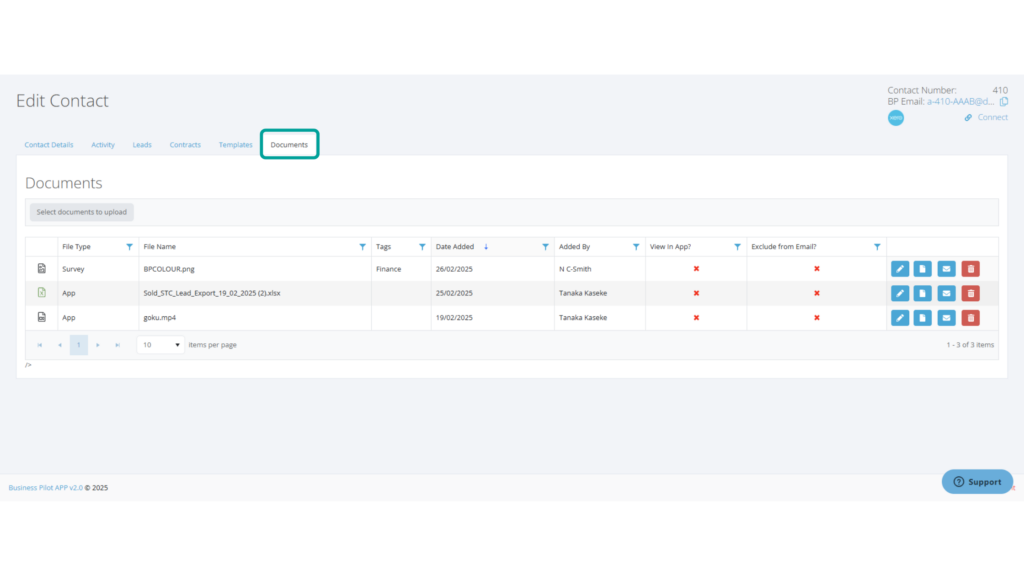
This new area works in the same ways as all other Document Tabs in the system.
Just click the ‘Select Documents to Upload’ button and select the document from your device. Then you can email, download, edit or delete documents using the buttons to the right-hand side.
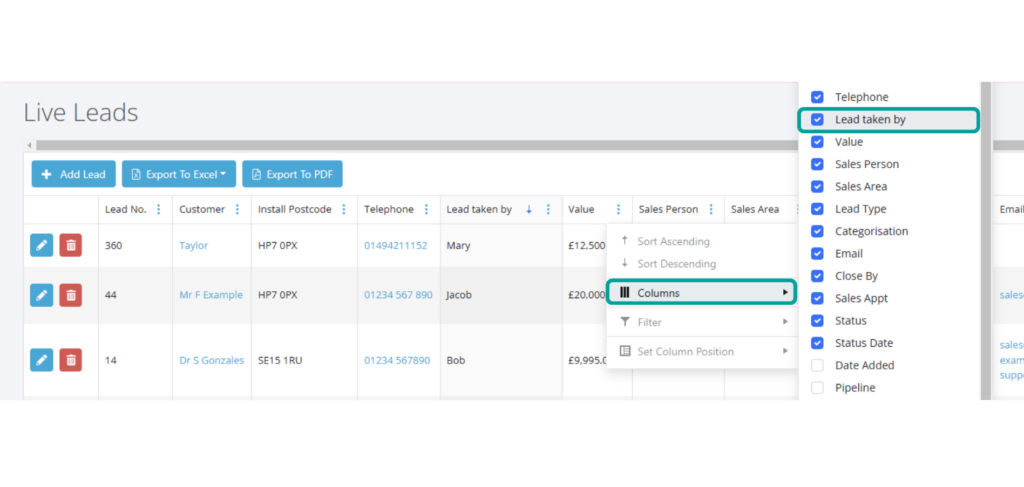
New ‘Lead Taken By’ Column Added to Lead Grids
A new ‘Lead Taken By’ column has been added to all our Lead Grids. To see this column in your view, just select the 3 dots at the top of any column, hover on Columns and then check the tick box ‘Lead Taken By’ as shown here:
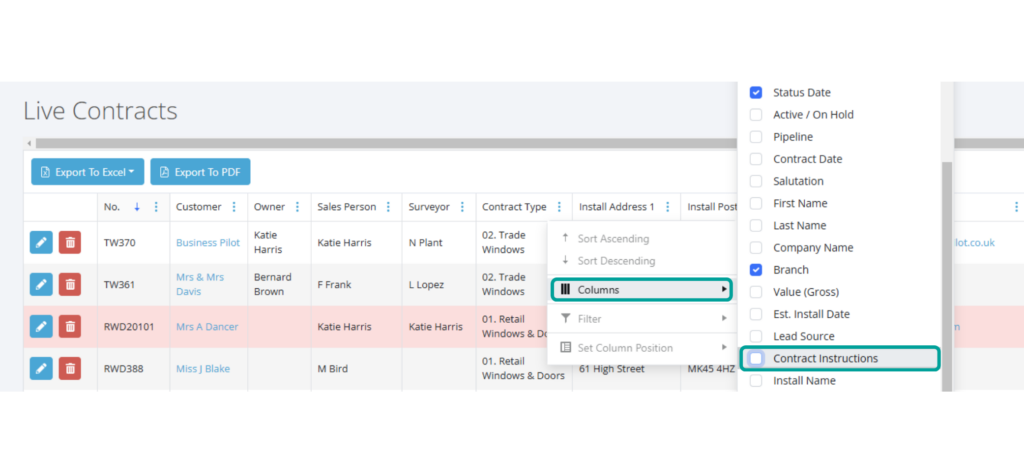
New ‘Contract Instructions’ Column Added to Contract Grids
In the Contract Grids, we’ve added a new ‘Contract Instructions’ column. To add this column to your view, click on the three dots at the top of any column, hover on Columns and select ‘Contract Instructions’.
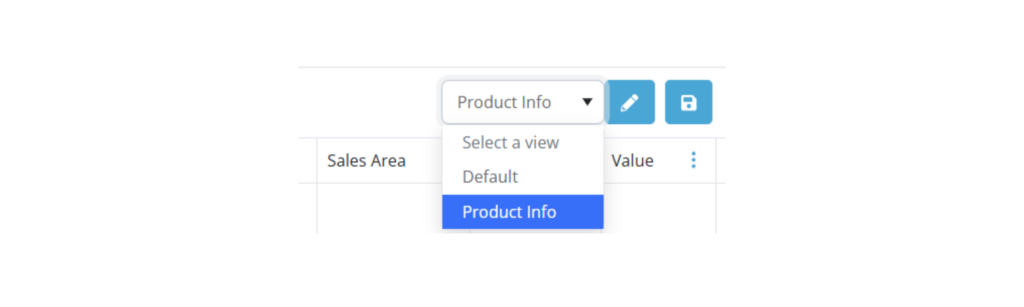
Remember, when adding new columns to your grids, you can save your grid views so you can easily see what you need to, without reselecting all the correct columns every time!
Once you’ve got the columns you need, in the right order (you can just drag & drop them!) hit the save icon in the top right, give it a name and then you’ll be able to select it from the dropdown whenever you’re on that grid page.
Default User Setting for Default Task Completion Notifications
If you’re a user who sets lots of tasks for your team members, but don’t need to receive notifications every time they are completed, you can now change your default Task Notification Setting to ‘Off’.
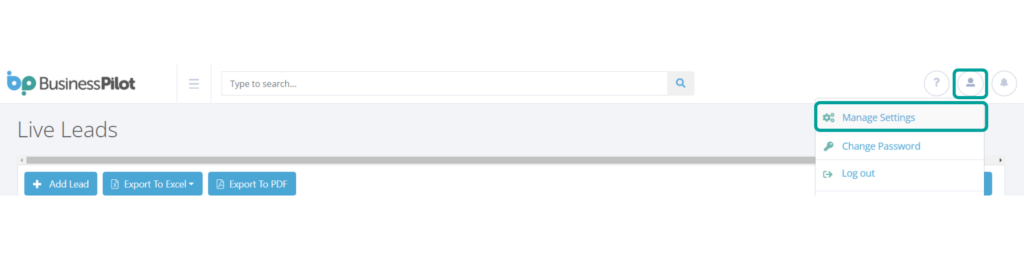
To set this, head to your personal user settings. Click the person icon in the top right hand sign of your screen and select ‘Manage Settings’.
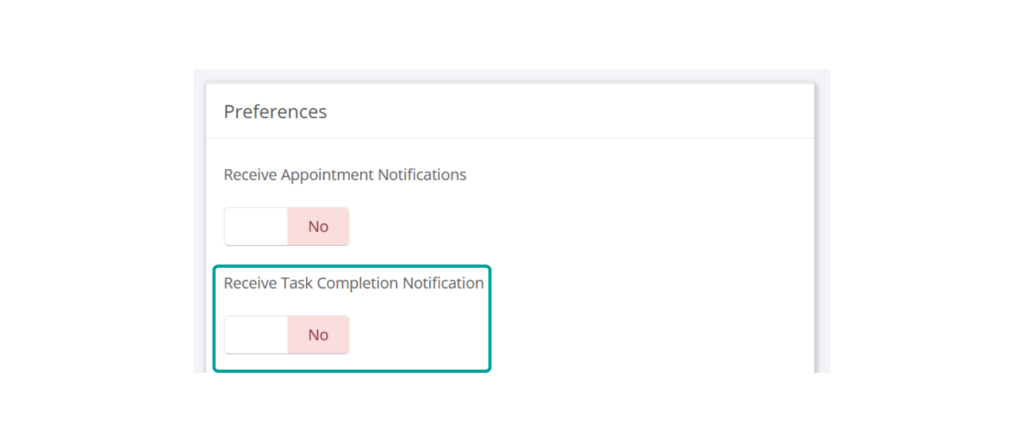
In the ‘Preferences’ box in the left-hand column, you’ll see an option called ‘Receive Task Completion Notifications’.
Simply toggle to Yes or No, depending on your preference.
If you need help with any of these updates, please don’t hesitate to reach out to our support team on 0333 050 7632 or hit the support button to send us a message.